
Beam gradients from Figma into After Effects — stops, colors, and opacity, faithfully — and keep every gradient in a reusable local library.
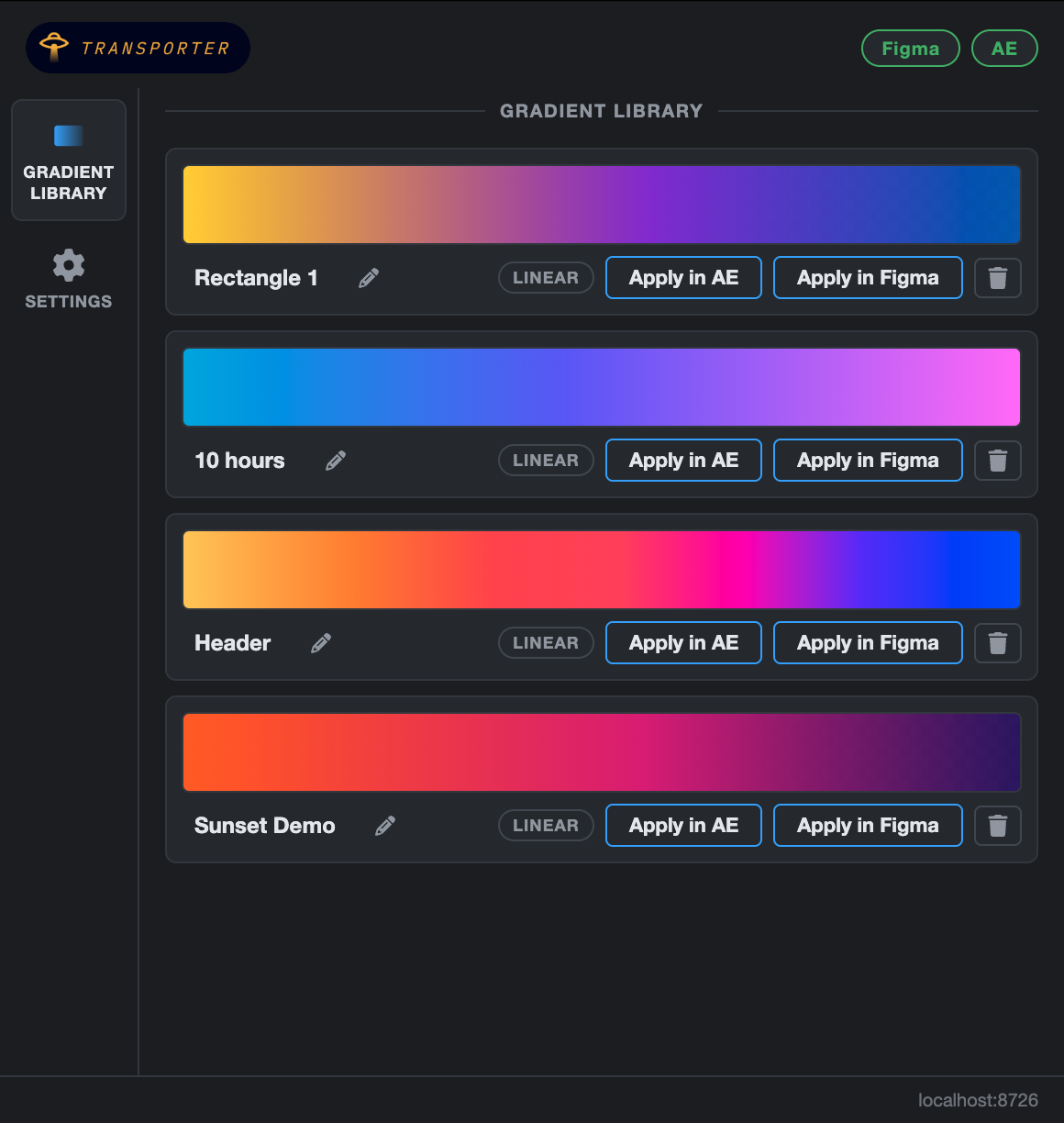
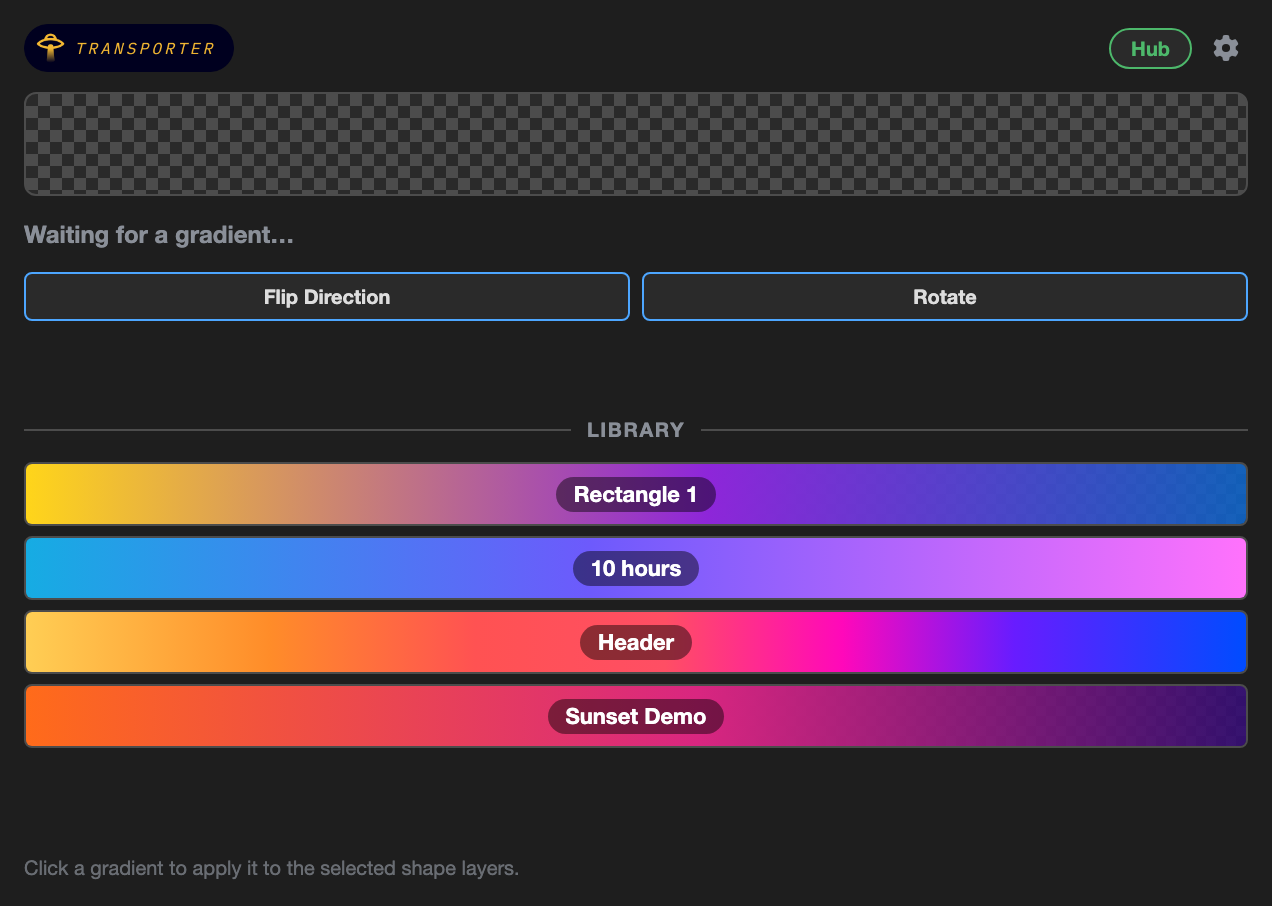
Transporter runs a local bridge on your machine between Figma and After Effects. Gradients you send are applied instantly and collected in a reusable library, so you can re-apply them in either app whenever you need them.
- Install the hub app
- macOS: open the DMG and drag Transporter to Applications.
- Windows: run the setup installer.
- Install the AE extension — open the
.zxpwith a ZXP installer (aescripts ZXP Installer is free). - Install the Figma plugin from the Community page (currently in Figma's review queue — check back soon if the page isn't live yet).
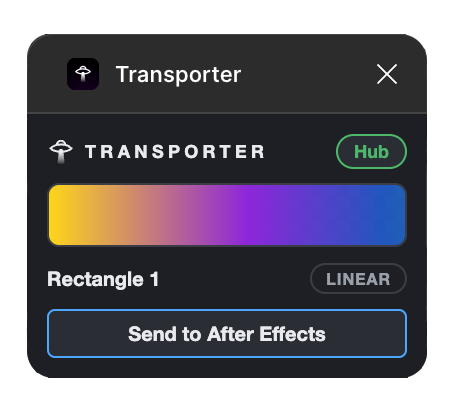
- With the hub open: select a gradient-filled layer in Figma and hit Send to After Effects. The gradient lands on your selected shape layer and is saved to the library.
The AE extension is signed with a self-signed certificate — your ZXP installer may show an "unverified publisher" notice. That's expected.
macOS (Apple Silicon) or Windows (x64) · After Effects 2024 or later (developed and tested on AE 2026) · Figma desktop or web. Everything runs locally — Transporter makes no network requests beyond your own machine.